August 3, 2026 · Updated August 6, 2026
Keep passwords out of Mac clipboard history
Password managers and one-time codes often pass through the clipboard. Learn how sensitive clipboard types and app exclusions help keep secrets out of Mac clipboard history.
A clipboard manager is useful because it remembers what you copied. That same memory is uncomfortable when the copy was a password, a one-time code, or a private token you only needed for a second.
This guide covers why sensitive values end up in clipboard history on Mac, what you can do about it, and how Plainboard helps with skip settings for concealed or transient clipboard types and app exclusions.
Why secrets pass through the clipboard
On Mac, many everyday actions use the clipboard as a short handoff:
- A password manager copies a password so you can paste it
- An authenticator or email gives you a one-time code to paste
- You copy an API key, recovery code, or internal URL “just for a moment”
The handoff is convenient. The risk is what happens next. If a clipboard manager saves every copy by default, a secret meant for one paste can sit in history longer than you expect — visible later when you browse older items, share the Mac, or clear history less often than you should.
Built-in Spotlight clipboard history has the same tension at a smaller scale: recent recovery is helpful, but recent history can also include things you would rather not keep.
What “sensitive clipboard” means on Mac
Not every app marks secrets the same way. Some password managers and secure apps put clipboard content into types that signal “this should not linger,” often described as concealed or transient.
Those marks are a hint to other software: treat this copy as short-lived or private. A clipboard manager that respects them can skip saving that content to history.
Important limits:
- Not every sensitive copy is marked. A password pasted from a plain text note looks like ordinary text.
- Not every app uses the same conventions.
- Skipping marked types reduces accidental history of secrets — it does not replace good password-manager habits or careful pasting.
So the practical goal is layered control: skip what is marked as sensitive, exclude apps you never want monitored, and keep everyday history useful for everything else.
How Plainboard keeps sensitive copies out of history
Plainboard is a local-first clipboard manager for macOS. History stays on your Mac, with no Plainboard account and no upload of clipboard content to Plainboard servers for sync. Privacy controls sit on top of that local history.
Skip concealed and transient clipboard types
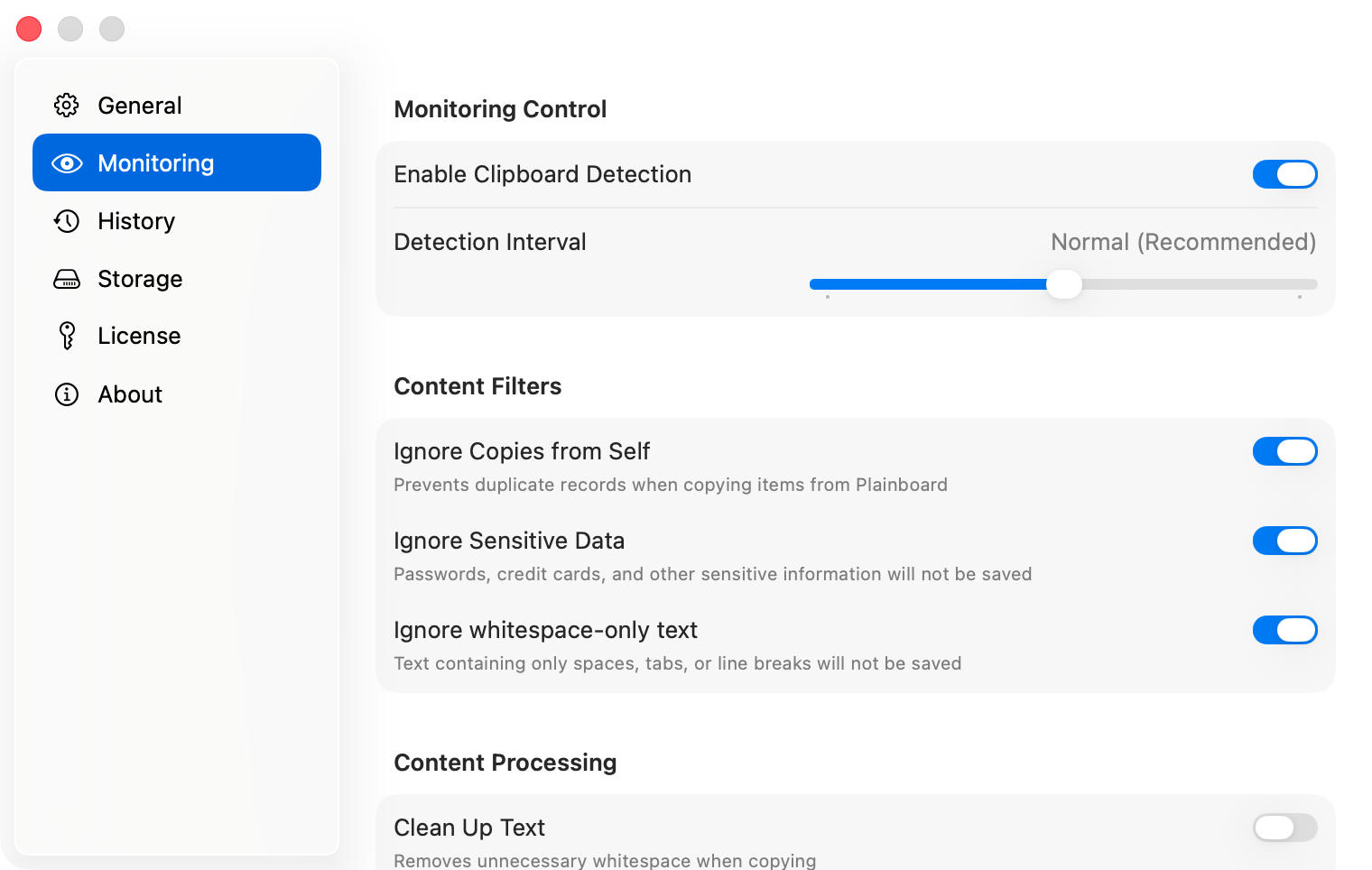
Plainboard includes a setting to skip sensitive clipboard types — for example, password-manager clipboard items that mark their content as concealed or transient. When those marks are present, Plainboard can avoid saving them to history so a one-time fill does not become a lasting list entry. In Monitoring, that control is Ignore Sensitive Data.
Exclude apps from monitoring
You can also exclude apps so copies from those apps are not saved at all. That is useful when:
- You want a password manager left out of history entirely
- A work app routinely copies internal identifiers you do not want retained
- You prefer a short allow-by-default list of tools that should never feed the history
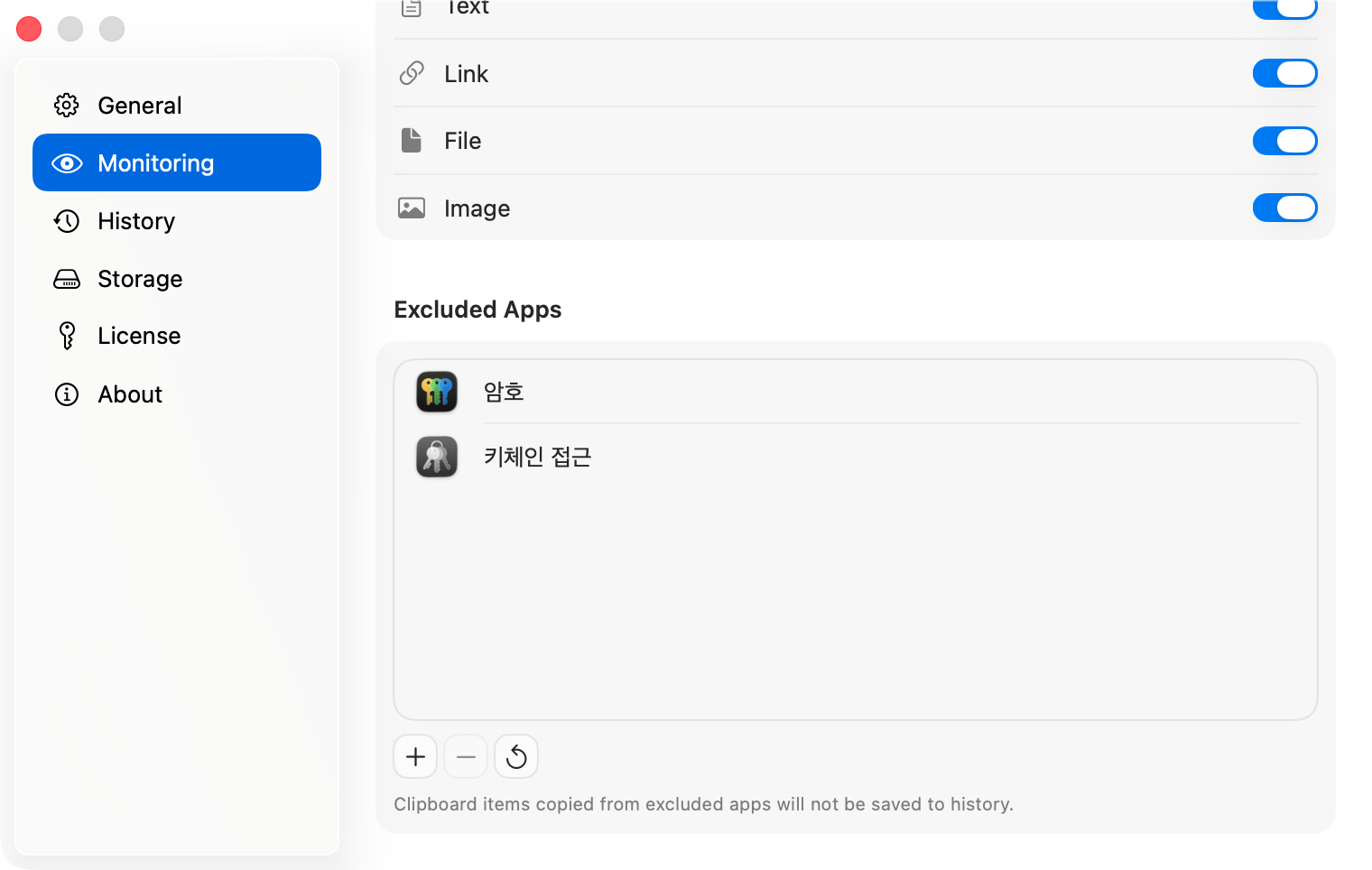
Exclude what should never be recorded. Rely on sensitive-type skipping for apps that already mark short-lived secrets. Use both when you want a tighter default. For example, adding macOS Passwords or Keychain Access to Excluded Apps keeps copies from those apps out of history.
Keep useful history for the rest
The point is not to stop using clipboard history. It is to keep history for text, links, files, and images you actually reuse — while reducing the chance that a secret fill becomes part of that archive.
Habits that still matter
Settings help, but a few habits close the gaps unmarked copies leave open:
- Prefer your password manager’s fill flow over copying secrets into notes or chat drafts
- Clear clipboard history after handling recovery codes or shared-Mac sessions
- Do not treat clipboard history as a password vault — bookmarks are for reusable references, not credentials
- Remember that pasting into another app still follows that app’s own behavior and policies
Local storage also narrows the blast radius: even when something is saved, it stays on your Mac instead of syncing to a vendor cloud as part of the product design.
When these controls matter most
Sensitive-clipboard controls are especially useful if you:
- Use a password manager that copies values to the clipboard
- Jump between browser, terminal, and messaging apps all day
- Share a Mac or leave it unlocked in a shared space
- Want longer clipboard history for work, without keeping one-time secrets beside it
If you only recover the last few ordinary items and rarely copy credentials, built-in short-term history may be enough. When history becomes part of daily work, exclusions and sensitive-type skipping make that habit safer.
Frequently asked questions
Does Plainboard save passwords?
Plainboard can skip sensitive clipboard types marked as concealed or transient, which many password-manager fills use. It cannot recognize every secret that looks like normal text. Exclude password-manager apps if you want those copies left out entirely.
What are concealed and transient clipboard types?
They are ways apps can mark clipboard content as private or short-lived. Clipboard managers that respect those marks can avoid saving that content to history.
Is excluding an app better than skipping sensitive types?
They solve different problems. Skipping marked types catches short-lived secrets from apps that cooperate. Excluding an app blocks everything from that app, marked or not. Use exclude when you want a hard stop.
If history is local, why exclude secrets at all?
Local-first reduces who else can see your history by default, but you may still browse history on your own screen, share the Mac, or keep items longer than a secret should live. Keeping secrets out of history is still the safer default.
Does clearing history replace these settings?
Clearing helps after the fact. Skip settings and app exclusions reduce how often secrets land in history in the first place.
Next step
If you want Mac clipboard history you can reuse — without keeping every password-manager fill beside it — try Plainboard. Skip concealed and transient clipboard types, exclude the apps you do not want monitored, and keep the rest of your history local on your Mac.
Related posts
How to view clipboard history on Mac (Spotlight Command-4)
View clipboard history on Mac: Command-Space, then Command-4. On macOS 26.1, Results from Clipboard is 30 minutes, 8 hours, or 7 days — 7 days is a max, not a dedicated manager. Plainboard keeps longer local history with type/app filters, files, images, and bookmarks — no account.
Local clipboard manager on Mac: on-device, no cloud sync
A local clipboard manager on Mac keeps history on-device: no account, no cloud sync. Plainboard stores text, links, files, and images locally instead of uploading clipboard content.
Try local clipboard history with Plainboard
Use Plainboard to find the link from Chrome, the file from Finder, or the note you copied earlier.