June 18, 2026 · Updated August 22, 2026
Local clipboard manager on Mac: on-device, no cloud sync
A local clipboard manager on Mac keeps history on-device: no account, no cloud sync. Plainboard stores text, links, files, and images locally instead of uploading clipboard content.
Your clipboard is not a neutral buffer. On a busy Mac day it holds passwords, draft replies, private links, screenshots, and file paths you never meant to keep forever. A clipboard manager makes that history useful — but it also decides where those copies live.
This guide explains what local-first clipboard history means, why that design fits everyday Mac work, and how Plainboard keeps what you copy on your device.
What “local-first” means for clipboard history
Local-first means clipboard history is stored and browsed on your Mac. You do not create an account to start. You do not sync clipboard content to a vendor cloud so it can follow you across devices.
For Plainboard, that looks like this in practice:
- History stays on your Mac
- No Plainboard account is required
- Clipboard content is not uploaded to Plainboard servers for sync
- You open history from the menu bar and reuse what you copied locally
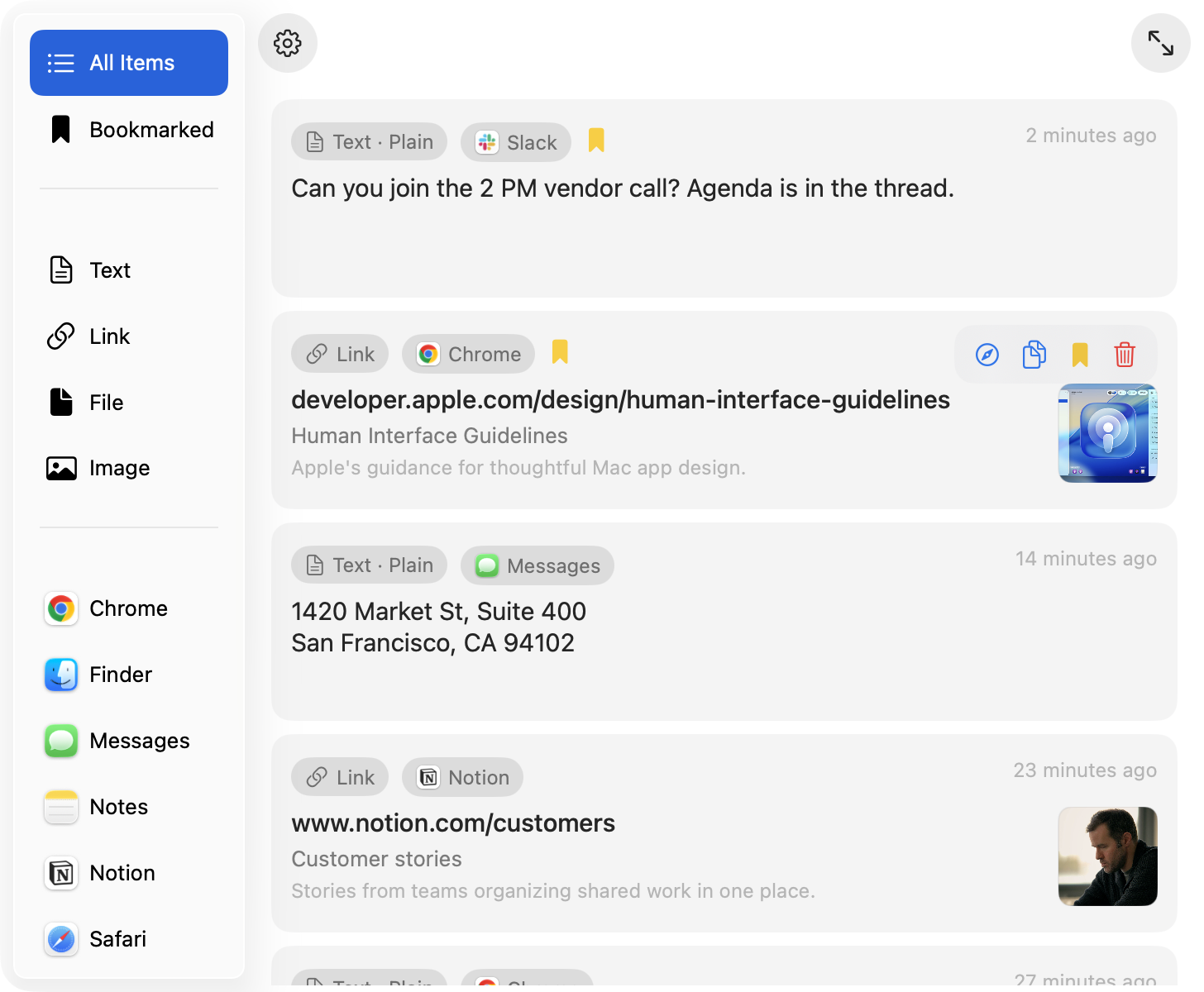
That is different from tools built around cloud continuity. Continuity is useful for some apps. Clipboard history is a poor default for it, because the content is often sensitive, short-lived, or both.
Why cloud sync is the wrong default for clipboard history
Clipboard history is not a document library. It is a stream of whatever you copied while working — including things you would never paste into a shared note.
Common examples:
- One-time codes and password-manager fills
- Draft messages you abandoned mid-edit
- Internal links, customer details, or support snippets
- Screenshots and file copies from Finder
If that stream leaves your Mac by default, you gain convenience on another device and take on a larger trust surface: accounts, sync pipelines, and remote storage of content you may not have intended to keep.
A local clipboard manager flips the default. History is useful on the machine where you copied it. Nothing has to leave that machine for the product to work.
What stays local with Plainboard
Plainboard is built as a local-first clipboard manager for macOS. The product promise is simple: get back what you copied, organized on your Mac.
That local foundation supports the rest of the workflow:
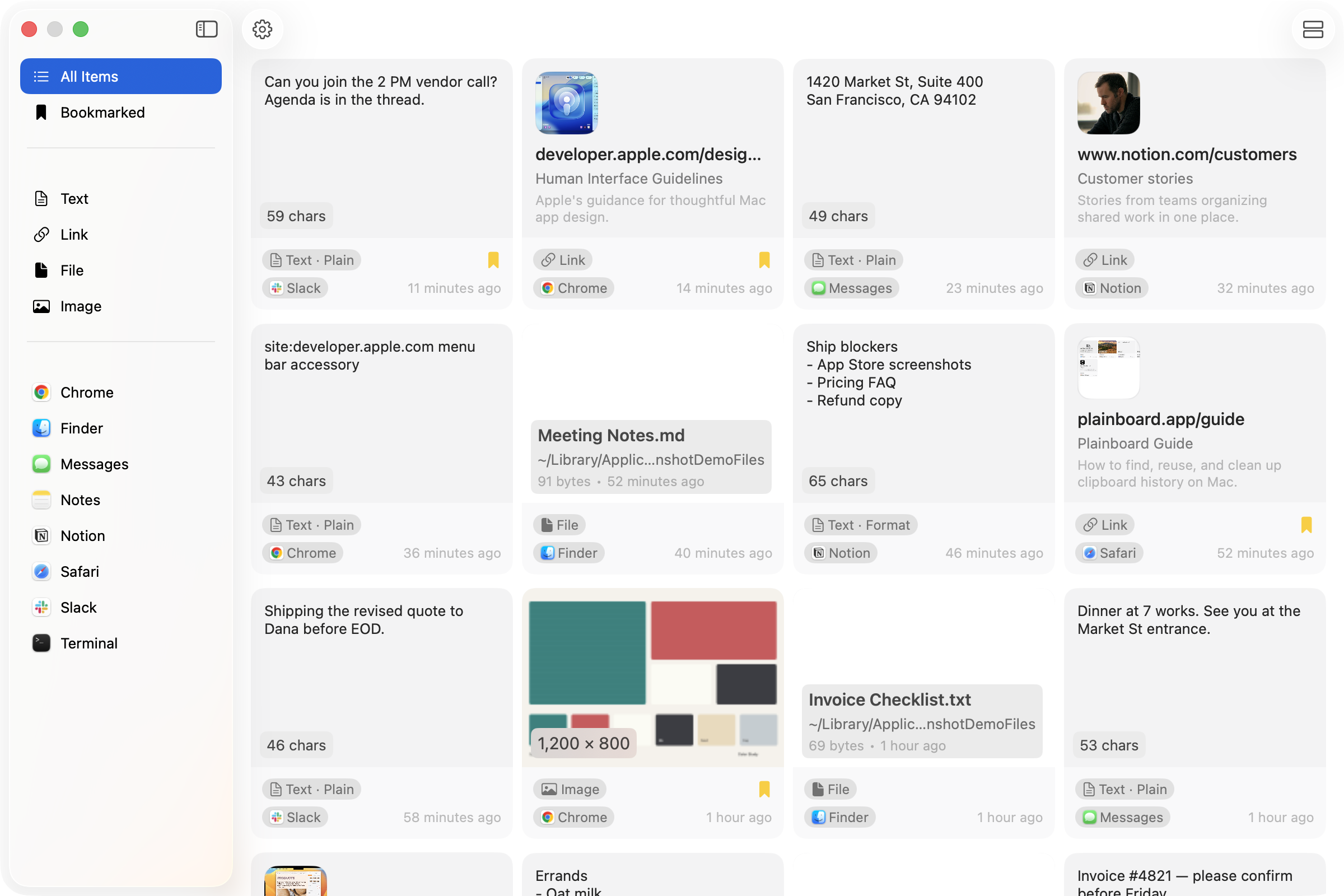
- Browse text, links, files, and images in views that match each type
- Filter by source app when you remember where you copied something
- Bookmark items you want to keep within reach
- Exclude apps you do not want monitored
- Skip sensitive clipboard types marked as concealed or transient (for example, many password-manager fills)
None of those features require uploading clipboard content to Plainboard. Organization happens where the copies already are.
Local history that is still easy to reuse
Keeping history local does not mean keeping it messy. The point of a clipboard manager is reuse — finding the link from an hour ago, the screenshot from this morning, or the paragraph you copied between apps.
Plainboard treats clipboard history as something you browse while you work, not only as a last-chance recovery list:
- Type-based views keep links, files, and images from collapsing into one flat text stream
- Source-app filters narrow the list when you know you copied from Chrome, Finder, Notes, or another app
- Bookmarks turn temporary copies into items you can return to on purpose
Copying can also work as a lightweight holding place. When you find a reference you may need soon, copying it is often faster than filing a full note. Local history keeps that temporary shelf on your Mac, without turning every copy into cloud baggage.
When a local clipboard manager fits
A local clipboard manager is a strong fit when you:
- Work mostly on one Mac and want history there
- Prefer no account and no cloud sync for clipboard content
- Copy a mix of text, links, files, and images throughout the day
- Want control over which apps are monitored and which sensitive types are skipped
- Need browsing and bookmarks, not only short-term recovery
If you only recover the last few items occasionally, the built-in Spotlight clipboard view may be enough. When clipboard history becomes part of how you work, local-first design keeps that habit private by default.
Frequently asked questions
Does Plainboard upload my clipboard to the cloud?
No. Plainboard stores clipboard history locally on your Mac. Clipboard content is not uploaded to Plainboard servers for sync, and you do not need an account to use it.
Is local-first the same as “no history leaves my Mac”?
Local-first means Plainboard does not sync clipboard history to its own cloud. Your Mac still behaves like a Mac: you can paste into other apps, and those apps have their own privacy policies. Plainboard’s job is to keep its history on device.
Can I keep sensitive apps out of history?
Yes. You can exclude apps so copies from those apps are not saved. Plainboard can also skip sensitive clipboard types marked as concealed or transient.
Do I still get organization without cloud features?
Yes. Local history can still be organized by type, filtered by source app, and bookmarked. Those are browsing features, not sync features.
When is built-in Mac clipboard history enough?
Use Spotlight for occasional, recent recovery — see clipboard history in Spotlight. Choose a local clipboard manager when you want longer everyday reuse, clearer browsing, and controls for privacy-sensitive copies.
Next step
If you want clipboard history that stays on your Mac — with no account and no cloud sync — try Plainboard. It keeps text, links, files, and images organized locally so you can reuse what you copied while you work.
Related posts
How to view clipboard history on Mac (Spotlight Command-4)
View clipboard history on Mac: Command-Space, then Command-4. On macOS 26.1, Results from Clipboard is 30 minutes, 8 hours, or 7 days — 7 days is a max, not a dedicated manager. Plainboard keeps longer local history with type/app filters, files, images, and bookmarks — no account.
Keep passwords out of Mac clipboard history
Password managers and one-time codes often pass through the clipboard. Learn how sensitive clipboard types and app exclusions help keep secrets out of Mac clipboard history.
Reuse files and images from Mac clipboard history
Clipboard history is not only for text. Learn how type-based views for files, images, links, and text make Mac clipboard history easier to browse and reuse.
Try local clipboard history with Plainboard
Use Plainboard to find the link from Chrome, the file from Finder, or the note you copied earlier.