May 21, 2026 · Updated August 30, 2026
How to view clipboard history on Mac (Spotlight Command-4)
View clipboard history on Mac: Command-Space, then Command-4. On macOS 26.1, Results from Clipboard is 30 minutes, 8 hours, or 7 days — 7 days is a max, not a dedicated manager. Plainboard keeps longer local history with type/app filters, files, images, and bookmarks — no account.
You copy a link, then copy something else by accident — and the first item is gone. On a Mac or MacBook, that happens all the time.
Recent macOS versions include clipboard history inside Spotlight, including macOS Sequoia and macOS 26 (Tahoe). That is enough for quick recovery. macOS 26.1 lets you keep Spotlight results for 30 minutes, 8 hours, or 7 days — 7 days is a cap, not a substitute for a dedicated manager. When you need longer copy and paste history, type or app filters, files and images, or bookmarks, a local clipboard manager fits better.
Practical rule: recent recovery → Spotlight. Everyday browse, filter, and reuse on your Mac → Plainboard.
Does Mac have clipboard history?
Yes. On a Mac or MacBook running a recent macOS, Spotlight includes a built-in clipboard history view. Open Spotlight with Command-Space, then open Clipboard with the Clipboard button or Command-4.
If Clipboard never appears, your macOS version may not include it yet, or Results from Clipboard may be off in System Settings. Apple’s guide: Search your Clipboard history in Spotlight on Mac.
How to see clipboard history on Mac with Spotlight
- Press Command-Space to open Spotlight.
- Open the Clipboard view with the Clipboard button, or press Command-4.
- Browse recent items, or type to search.
- Select an item to copy it back to the clipboard.
- Clear history from the same view when you want a clean slate.
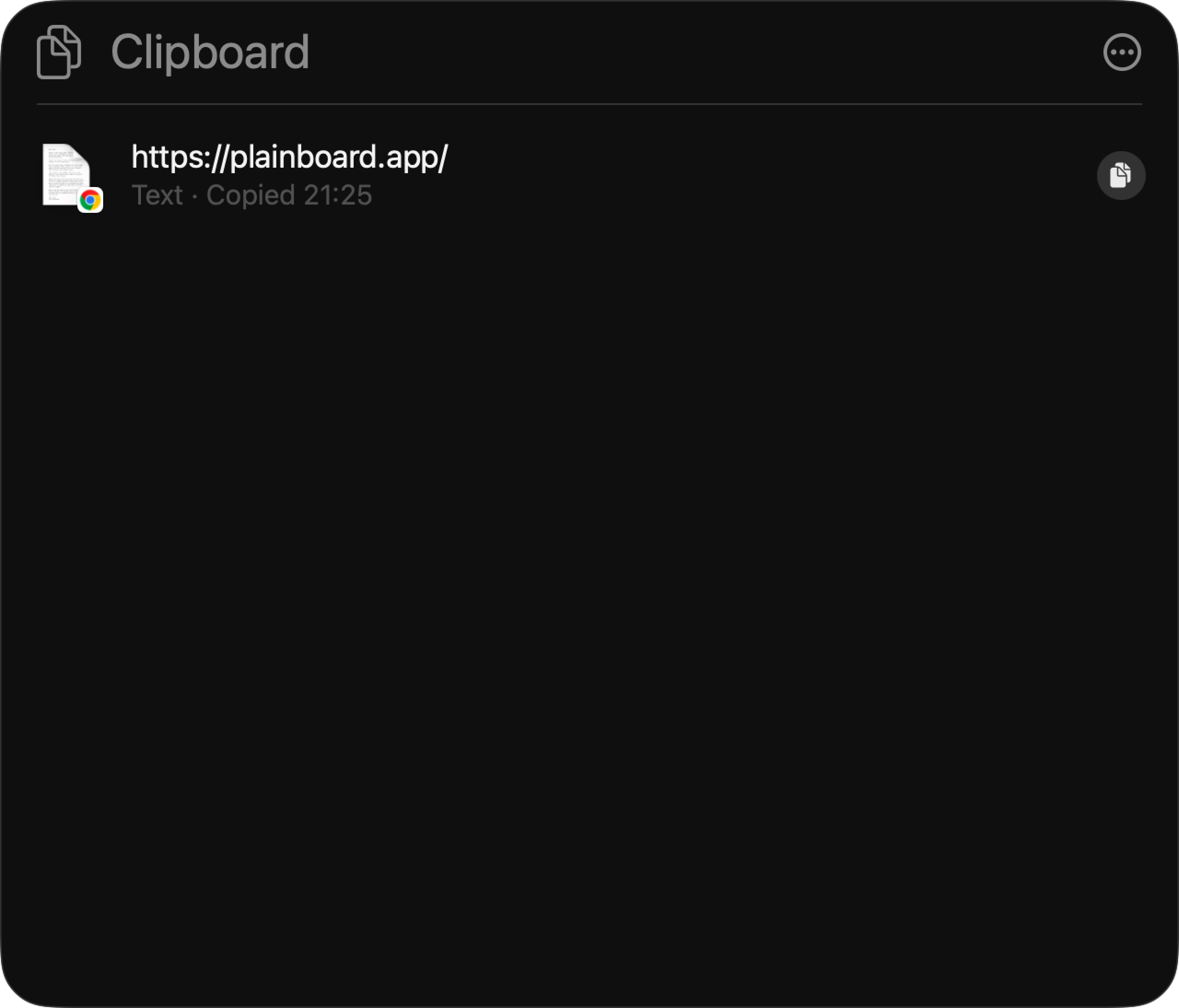
That is the fastest way to recover something you copied a moment ago.
Quick tips
- Spotlight clipboard history is for short-term recovery, not long-term storage.
- Search works best when you remember a word, domain, or fragment.
- Clear history on a shared Mac, or after copying sensitive text.
Mac clipboard history shortcut
The built-in Mac clipboard history shortcut is two steps:
- Press Command-Space to open Spotlight.
- Press Command-4 to open Clipboard history, or click the Clipboard button.
There is no separate system-wide clipboard-history key outside Spotlight. If Command-4 does nothing, make sure Spotlight is open first, then check Results from Clipboard below.
How to see copy and paste history on Mac
If you need previous copied text — the link or snippet you copied earlier today, not just the last few items — start in Spotlight first.
- Open Spotlight (Command-Space), then Clipboard (Command-4).
- Type a word, domain, or fragment from the item.
- If the item is gone, the Spotlight retention window has likely ended (30 minutes, 8 hours, or 7 days on macOS 26.1).
When “I copied that earlier — where did it go?” happens often, the built-in history is usually too short — even at the 7-day maximum. That is the usual signal to use a dedicated clipboard manager for everyday reuse.
Which macOS versions include Spotlight clipboard history?
Spotlight clipboard history is available on recent macOS releases, including macOS Sequoia and macOS 26 (Tahoe). Older versions only keep the current clipboard item. On macOS 26.1, Results from Clipboard adds duration choices: 30 minutes, 8 hours, or 7 days.
If Clipboard never appears after Command-4, update macOS if you can, then check the setting below.
Turn on Clipboard history in Spotlight settings
If Clipboard never appears, or history stays empty, check System Settings.
- Open System Settings → Spotlight.
- Under Results from Clipboard, turn the option on.
- Choose how long history stays available. On macOS 26.1, the options are 30 minutes, 8 hours, and 7 days. Seven days is the Spotlight maximum, not a reason to skip a dedicated manager.
- Use Clear Clipboard History when you want to wipe recent copies.
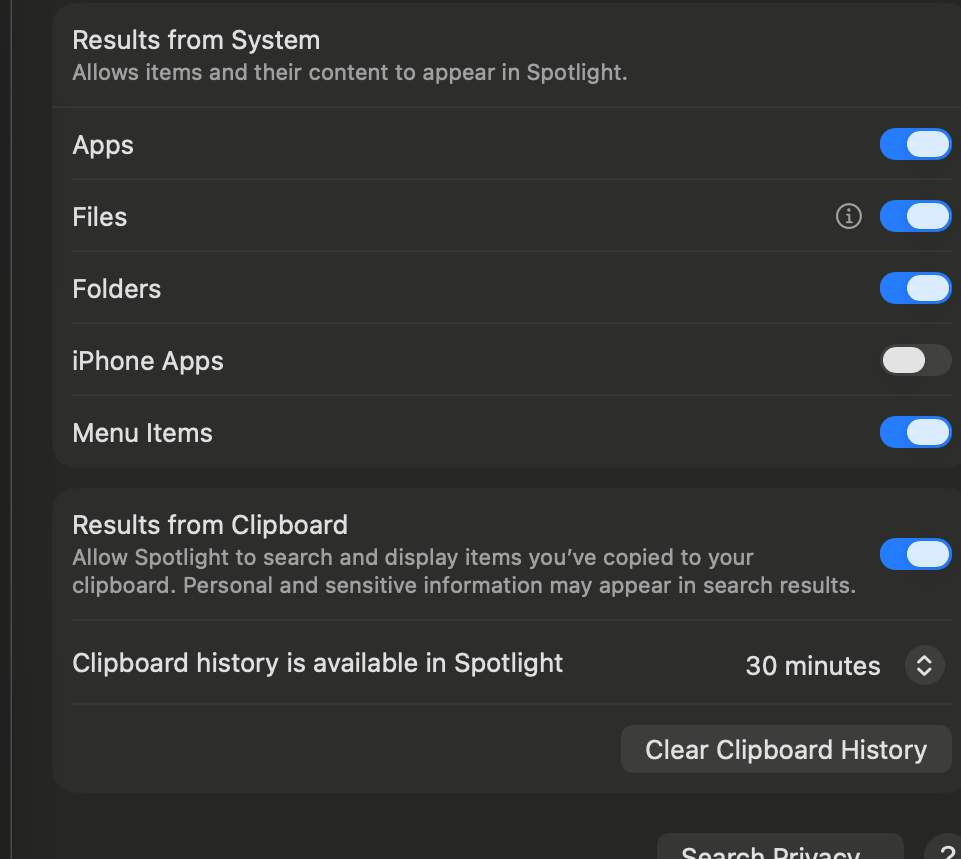
That duration setting is easy to miss. Spotlight is built for recent recovery. Even the 7-day option is a cap: older copies still drop off, and you do not get type filters, app filters, files/images as first-class views, or bookmarks.
Spotlight vs Plainboard
| Need | Spotlight clipboard | Plainboard |
|---|---|---|
| Recover a recent item | Strong | Strong |
| Browse by type (text, links, files, images) | Limited | Built for this |
| Filter by source app | No | Yes |
| Bookmark items to reuse | No | Yes |
| Local history for daily work | Short-term recovery | Everyday browsing and reuse |
Use Spotlight when you only need recent clipboard recovery. Use Plainboard when you want local clipboard history that is easier to browse, filter, and reuse over time.
Focused comparison: Spotlight vs Plainboard: Mac clipboard history compared.
When Spotlight clipboard history is enough
Stay with Spotlight when you:
- Overwrote an item you copied a few seconds ago
- Only need a short recent history
- Do not need to organize items by type, app, or bookmark
Limits of the built-in Mac clipboard history
The built-in option starts to feel thin when clipboard history becomes part of your daily workflow:
- History is capped — on macOS 26.1, Results from Clipboard maxes out at 7 days (or 30 minutes / 8 hours)
- Older items are harder to find once the list grows
- Text, links, files, and images are not separate browsing surfaces
- Little support for filtering by source app
- No durable bookmarks for items you reuse often
- Weak as a temporary holding place for references you copy throughout the day
When a dedicated clipboard manager helps
A dedicated manager helps when you copy different kinds of things all day and need them again later.
Typical situations:
- You jump between Chrome, Notion, Finder, and messaging apps
- You need the link you copied an hour ago, not just the last few items
- You want to browse images and files visually
- You use copy as a lightweight holding place for posts, references, and snippets
Plainboard keeps copied items on your Mac and makes them easier to browse by type, source app, or bookmark.
If you already use Raycast or Alfred for clipboard history, stay there. To compare dedicated apps, see Best clipboard managers for Mac.
What Plainboard organizes
Plainboard can save copied text, links, files, and images. Each type gets a view that fits the content.
- Text can be plain or formatted.
- Links can show metadata when available.
- Files keep useful file details.
- Images show visual previews and dimensions.
You can also filter by source app — for example Chrome, Notion, Finder, or Obsidian. For files and images specifically, see Reuse files and images from Mac clipboard history. For passwords and sensitive copies, see Keep passwords out of Mac clipboard history.
Frequently asked questions
Does macOS have clipboard history?
Yes, on recent versions — including on a MacBook. Open Spotlight with Command-Space, then use the Clipboard button or Command-4.
What if Command-4 does nothing?
Your macOS version may not include Spotlight clipboard history yet, Spotlight may not be focused, or Results from Clipboard may be off in System Settings → Spotlight. Update macOS if possible, turn Clipboard results on, open Spotlight first, then try again.
How long does Spotlight keep clipboard history?
It depends on the duration under Results from Clipboard. On macOS 26.1, you can choose 30 minutes, 8 hours, or 7 days. Seven days is the maximum Spotlight will keep — after that window, older items are gone. A local manager is for longer history, type/app filters, files and images, and bookmarks.
Is a clipboard manager safe for privacy?
It depends on the app. Prefer tools that keep history on your Mac. Plainboard is local-first: clipboard content stays on your device instead of being uploaded to Plainboard servers for sync. In Spotlight, use Clear Clipboard History after copying sensitive text.
When should I switch from Spotlight to an app?
Stay with Spotlight if you only recover recent items. Switch when you need longer history, type-based browsing, app filters, bookmarks, or a reusable holding place for links and snippets. If Raycast or Alfred already covers clipboard history for you, there is no need to switch.
Next step
If Spotlight is enough for occasional recovery, keep using it. If you want local clipboard history you can browse and reuse while you work, download Plainboard. See pricing if you want the longer-retention plan.
Related posts
Spotlight vs Plainboard: Mac clipboard history compared
Compare Spotlight clipboard history and Plainboard on Mac: when the built-in view is enough, and when a menu-bar clipboard manager helps everyday reuse.
Local clipboard manager on Mac: on-device, no cloud sync
A local clipboard manager on Mac keeps history on-device: no account, no cloud sync. Plainboard stores text, links, files, and images locally instead of uploading clipboard content.
Keep passwords out of Mac clipboard history
Password managers and one-time codes often pass through the clipboard. Learn how sensitive clipboard types and app exclusions help keep secrets out of Mac clipboard history.
Try local clipboard history with Plainboard
Use Plainboard to find the link from Chrome, the file from Finder, or the note you copied earlier.