16 juillet 2026 · Mis à jour 6 août 2026
Réutiliser fichiers et images depuis l’historique du presse-papiers Mac
L’historique du presse-papiers n’est pas réservé au texte. Comment les vues par type pour fichiers, images, liens et texte rendent l’historique Mac plus facile à parcourir et réutiliser.
La plupart des gens voient le presse-papiers comme un endroit pour du texte : une phrase, un mot de passe, une URL. Sur Mac, cette image est incomplète. Vous copiez aussi des captures d’écran, des fichiers du Finder, des images depuis un navigateur, et des liens qui méritent mieux qu’une chaîne brute dans une longue liste.
Ce guide se concentre sur l’historique fichiers et images du presse-papiers sur Mac — pourquoi une liste plate de récupération ne suffit pas, et comment Plainboard organise texte, liens, fichiers et images pour que vous puissiez les trouver et les réutiliser en travaillant.
Ce que vous copiez vraiment sur un Mac
Une journée chargée reste rarement dans un seul format.
- Vous prenez une capture, la collez dans Slack, puis en avez besoin plus tard
- Vous copiez un fichier dans le Finder pour le déplacer entre dossiers ou applications
- Vous récupérez une image d’une page ou d’un outil de design pour un brouillon
- Vous copiez liens et notes entre navigateur, Notes et applications de messagerie
Si l’historique traite tout cela comme du texte anonyme, les éléments utiles disparaissent dans le bruit. Les fichiers perdent leur contexte. Les images deviennent difficiles à reconnaître. Les liens ressemblent à n’importe quelle autre chaîne.
L’historique du presse-papiers fonctionne mieux quand le type de copie façonne la façon de parcourir.
Pourquoi un historique plat peine avec fichiers et images
Les outils de récupération à court terme sont bons pour « annuler le dernier écrasement ». Ils sont plus faibles quand il faut parcourir d’anciennes copies visuelles ou basées sur des fichiers.
Friction courante :
- Sans aperçu, captures et images sont difficiles à identifier
- Les copies de fichiers ont besoin de noms et de détails, pas d’un bloc d’une ligne
- Les liens gagnent à une présentation plus claire qu’une URL brute noyée dans le texte
- Tout mélanger dans un seul flux rend lent de trouver « ce PNG de ce matin »
Quand l’historique du presse-papiers fait partie du travail quotidien — pas seulement de la récupération d’urgence — le type compte autant que la récence.
Comment Plainboard organise par type
Plainboard est un gestionnaire de presse-papiers pour macOS. Il enregistre sur votre Mac le texte, les liens, les fichiers et les images copiés, et donne à chaque type une vue adaptée au contenu.
- Texte — fragments simples ou formatés que vous réutilisez entre applications
- Liens — URLs avec métadonnées quand disponibles, plus faciles à parcourir qu’une liste de chaînes brutes
- Fichiers — fichiers copiés avec des détails utiles plutôt que des placeholders opaques
- Images — aperçus visuels et dimensions pour reconnaître une capture d’un coup d’œil
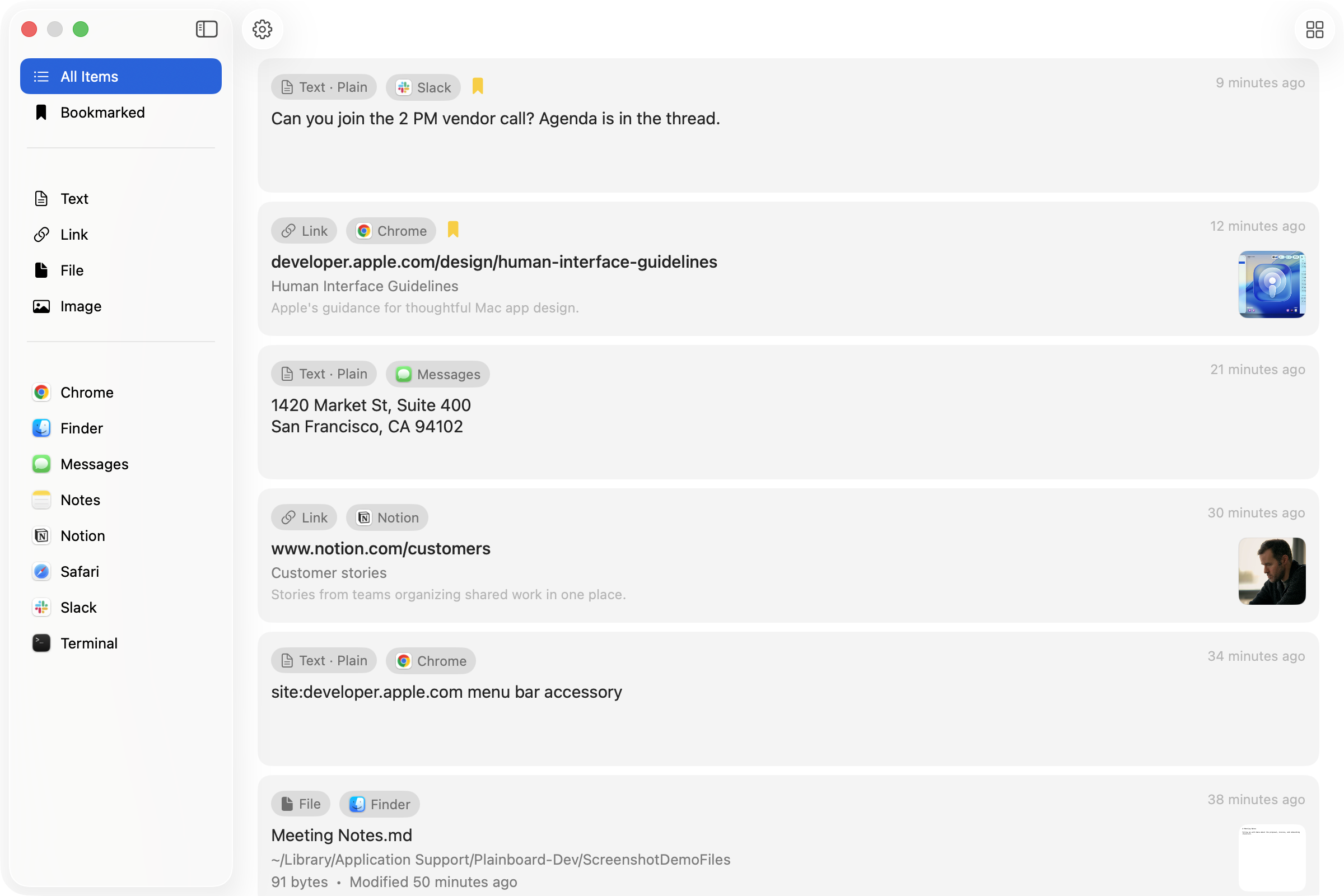
Vous pouvez aussi filtrer par application source. Si vous vous souvenez d’avoir copié depuis le Finder, Chrome ou une autre application, affinez la liste avant de tout fouiller. En vue grille, aperçus d’images et cartes de fichiers se distinguent d’un coup d’œil.
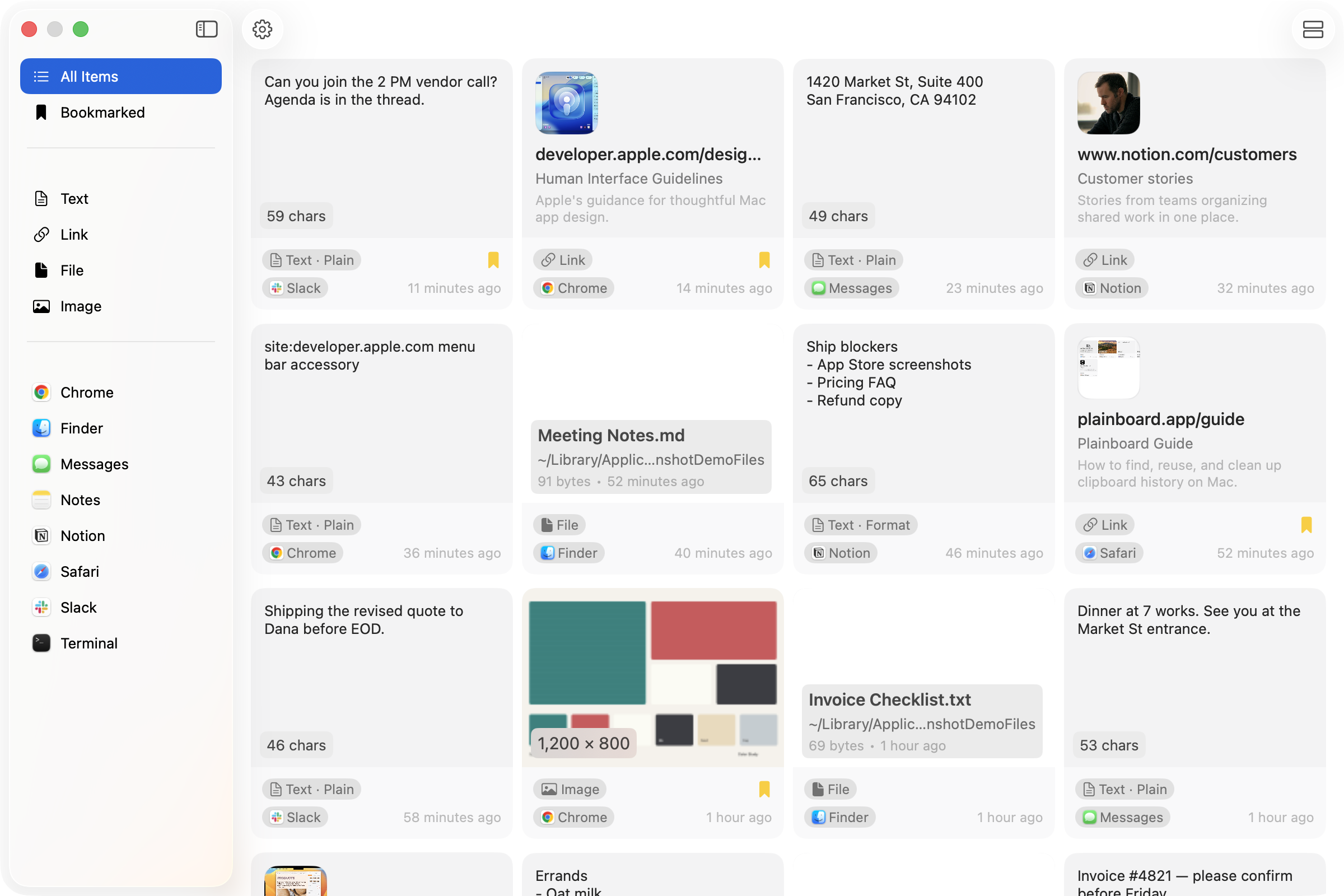
L’historique reste sur votre Mac : pas de compte Plainboard, et le contenu du presse-papiers n’est pas envoyé sur nos serveurs.
Façons concrètes de réutiliser fichiers et images
L’historique par type brille dans les petits moments répétés.
Captures dont vous avez besoin deux fois
Copiez ou capturez une image, collez-la une fois, puis continuez. Plus tard, ouvrez Plainboard, passez aux images, et recopiez la même capture sans chercher dans les dossiers.
Fichiers qui circulent entre applications
Quand vous copiez un fichier dans le Finder, Plainboard peut garder cet élément dans l’historique avec des détails reconnaissables. Réutilisez-le quand l’application de destination, la boîte de dialogue d’envoi ou le second dossier est prêt — sans refaire le détour par le Finder si la copie est encore dans l’historique.
Images collectées en naviguant
Photos produit, images de référence et captures d’interface passent souvent par le presse-papiers avant d’atterrir dans un document ou un ticket. Une vue images transforme ce tas temporaire en quelque chose que vous pouvez parcourir visuellement.
Liens et texte à côté des médias
Fichiers et images voyagent rarement seuls. Dans la même session, vous copiez souvent une URL, une légende ou une note. Garder texte et liens dans leurs propres vues évite que la chasse aux médias enterre aussi les mots dont vous avez besoin.
L’historique du presse-papiers comme étagère temporaire
L’historique du presse-papiers ne sert pas qu’à corriger des erreurs. Il peut garder des références pour un court segment de travail : un fichier à joindre ensuite, une image à coller à deux endroits, un lien à ouvrir après un paragraphe.
Cela ne reste agréable que si l’étagère est parcourable. Plainboard la garde sur votre Mac et vous laisse mettre en favori les éléments à garder à portée plus longtemps qu’un passage normal dans l’historique.
Quand l’historique par type convient
Cette approche convient bien si vous :
- Copiez captures et images tout au long de la journée
- Déplacez des fichiers par copier-coller, pas seulement par glisser-déposer
- Passez du Finder au navigateur, au chat et aux documents
- Voulez parcourir par type ou application source, pas seulement par « le plus récent »
- Préférez un historique sur votre Mac, sans synchronisation cloud pour le contenu du presse-papiers
Si vous ne récupérez que les derniers éléments de texte, l’historique intégré à court terme peut suffire. Quand fichiers et images font partie de ce que vous copiez, le parcours par type est là où un gestionnaire dédié gagne sa place.
Questions fréquentes
L’historique du presse-papiers Mac peut-il inclure fichiers et images ?
Oui, selon l’outil. Plainboard gère texte, liens, fichiers et images copiés, avec aperçus et métadonnées quand disponibles.
En quoi cela diffère-t-il de l’historique Spotlight ?
Spotlight se concentre sur la récupération récente. Plainboard est conçu pour le parcours quotidien — y compris des vues distinctes pour des types comme fichiers et images, plus filtres par application source et favoris.
Ai-je besoin de la synchronisation cloud pour que l’historique d’images soit utile ?
Non. Un historique utile, c’est trouver le bon élément sur le Mac où vous l’avez copié. Plainboard garde cet historique sur votre Mac.
Puis-je filtrer uniquement les fichiers ou uniquement les images ?
Oui. Plainboard permet de parcourir par type de contenu, et aussi de filtrer par l’application qui a produit la copie.
Et les liens qui ressemblent à du texte ?
Plainboard traite les liens reconnus comme leur propre type, pour que les URLs n’aient pas à concurrencer chaque autre fragment de texte dans une seule liste indifférenciée.
Prochaine étape
Si le presse-papiers de votre Mac contient plus que du texte — captures, fichiers, liens et notes — essayez Plainboard. Parcourez par type, filtrez par application, et réutilisez ce que vous avez copié pendant qu’il reste sur votre Mac.
Articles associés
Comment voir l’historique du presse-papiers sur Mac (Spotlight Commande-4)
Historique du presse-papiers sur Mac : Commande-Espace, puis Commande-4. Sous macOS 26.1, Résultats du Presse-papiers = 30 minutes, 8 heures ou 7 jours — 7 jours est un plafond, pas un gestionnaire dédié. Plainboard garde un historique local plus long, avec filtres type/app, fichiers, images et favoris, sans compte.
Garder les mots de passe hors de l’historique du presse-papiers Mac
Les gestionnaires de mots de passe et les codes à usage unique passent souvent par le presse-papiers. Comment les types sensibles et les exclusions d’applications aident à garder les secrets hors de l’historique Mac.
Essayez l’historique du presse-papiers avec Plainboard
Retrouvez le lien copié depuis Chrome, le fichier du Finder ou la note que vous avez copiée plus tôt.