August 26, 2026
Skip the note: find temporary copies again on Mac with Plainboard
For links, sentences, files, and images you will use again soon, copy them to Plainboard's clipboard history instead of making a note, then find them later.
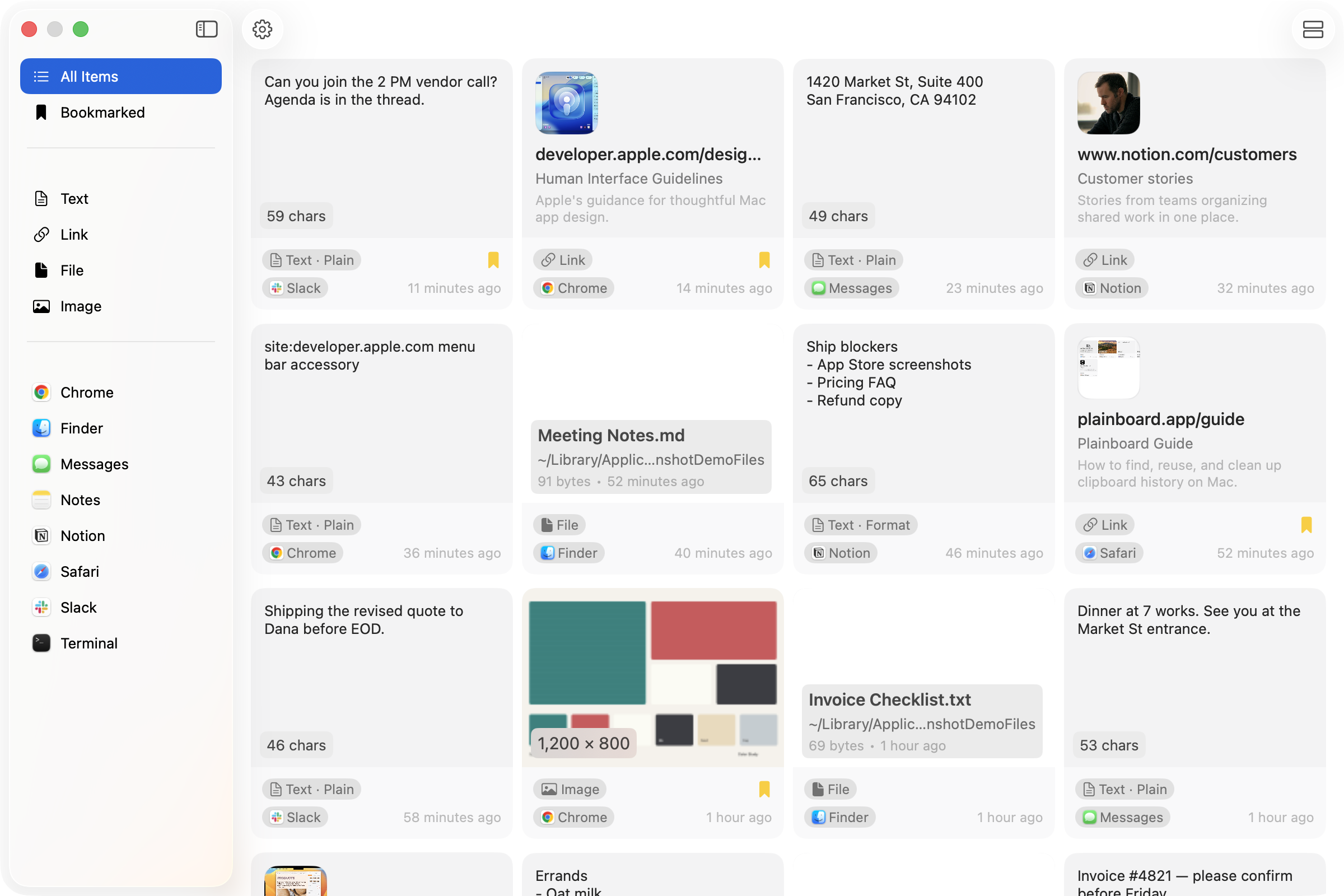
Plainboard gives short-lived copies a place to stay without a note. Copy a link, sentence, file, or image, keep working, and open Plainboard from the menu bar when you need it again.
Some temporary things do not need a note
You often need something again soon: a link from a webpage, a sentence to move somewhere else, a terminal command, or a filename. A note keeps it safe, but naming and filing a tiny piece of information can take more effort than the information itself.
In those moments, just copy it. Plainboard keeps the copy in clipboard history. You can organize it later and still use it when you need it.
Find it again after you copy something else
The regular clipboard replaces its current contents when you copy something new. Plainboard keeps copied items in history. After several more copies, open Plainboard from the menu bar, find the earlier item, and copy it back to the clipboard.
Plainboard is for temporary holding, not long-term notes. Keep something while you work, then bring it back when you need it.
A copy-first workflow
- Copy the link, sentence, file, or image you need.
- Keep working instead of opening a note and filing it.
- When you need it, open Plainboard from the menu bar and browse your history.
- Search, narrow the list by type or source app, and copy the item again.
Bookmark items you expect to reuse often so they are easy to find in your history.
When a note is better
Not everything belongs in clipboard history. Information you want to keep for a long time, records you need to organize by topic, and documents you want to share with someone else fit better in a notes app or a document app.
Copying is lighter for something you only need during today's work. It also suits something you may need again but do not want to file yet. Plainboard lets you open that temporary shelf from your Mac's menu bar.
You can exclude apps you do not want to record. Plainboard can also skip sensitive clipboard items marked as concealed or transient. It is safer not to copy passwords or one-time codes as temporary copies.
Find it again in Plainboard
If a piece of information is too small for a note but worth keeping nearby, copy it. Open Plainboard's history when you need it, copy the item back, and continue working.
You do not have to organize every copy as you make it. Find it when you need it.
Related posts
How to view clipboard history on Mac (Spotlight Command-4)
View clipboard history on Mac: Command-Space, then Command-4. On macOS 26.1, Results from Clipboard is 30 minutes, 8 hours, or 7 days — 7 days is a max, not a dedicated manager. Plainboard keeps longer local history with type/app filters, files, images, and bookmarks — no account.
Local clipboard manager on Mac: on-device, no cloud sync
A local clipboard manager on Mac keeps history on-device: no account, no cloud sync. Plainboard stores text, links, files, and images locally instead of uploading clipboard content.
Try local clipboard history with Plainboard
Use Plainboard to find the link from Chrome, the file from Finder, or the note you copied earlier.